Your Android phone
was pretty fast when you first bought it, right? Then over
time it began running more slowly. This is a common problem and nothing to
worry about. Below is our guide to getting your phone to run fast again. Read
on for our best tips to speed up your phone.

The first thing to do is find out what is causing the
problem: an app, multiple apps, the system itself? Trepn Profiler by
Qualcomm will show you the real-time CPU load for individual cores, an
overview of network traffic for both data and Wi-Fi, GPU loads and RAM
usage and more.

Trepn
can also produce app-specific or system-wide profiles and contains various
methods for displaying accumulated data. You can save your profiled data for
offline viewing and analysis and even have performance overlays on running
apps.
Once you've figured out your specific issue, you can move on to
the solutions below.
2. Free up
some space
All those photos you've taken and all of those
apps you’ve installed can take their toll on your phone. It needs a little
breathing room to run smoothly and if it's running low on space, it can
start to slow down.
You
can check how much space you have left by heading to the Storage section
of Settings.
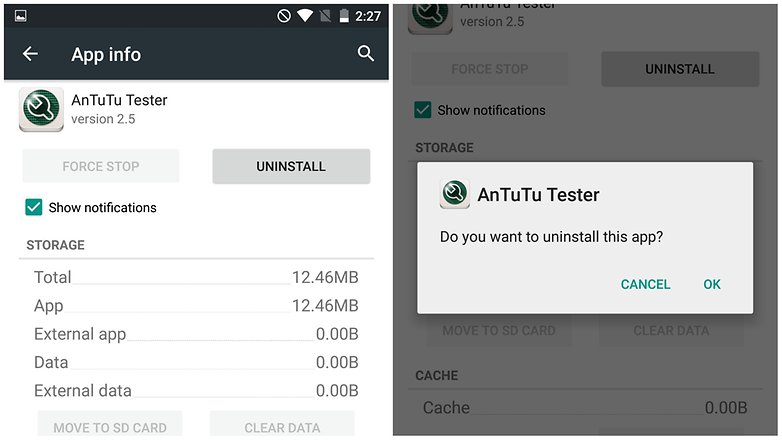
One of the easiest ways to free up space is to tap Applications and
see which apps you can uninstall.
- Tap the entry for an app you no longer need and then tap Uninstall. You can repeat this process as many times as necessary for any apps you feel you can live without.
There are other ways you can free up space.
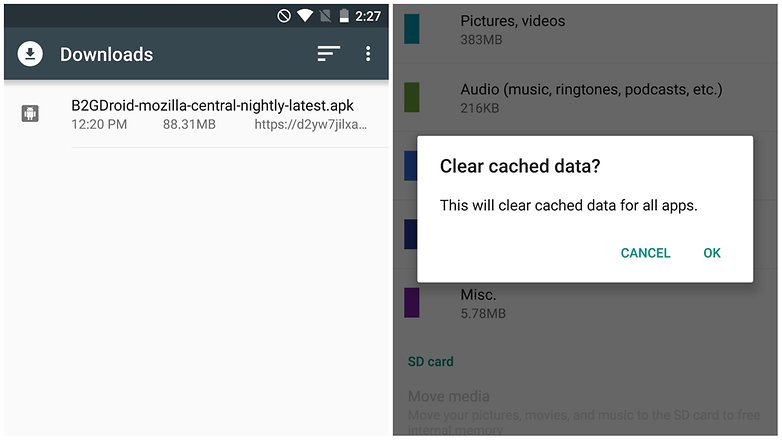
The files you have downloaded are probably still sitting in storage wasting
space and can be removed.
- In Storage, tap Downloads, select the files you want to remove and then tap the Trashcan icon
Many of the apps you have installed use data
caches in an attempt to speed up operations. This is effective up to a point,
but if you are running short of space, it can actually be counter-productive.
- To free up this space, hit the Clear cached
data option and then tap OK to confirm.
- More files ripe for deletion can be found in the Miscellaneous files section.
- Tick the boxes next to any types of file you'd like to remove – backups, files received via Bluetooth, playlist files, and so on – and then tap the Trashcan icon.
- You can keep an eye on how much space you have freed up when you look at the Available space section.
You can also disable any apps that came
pre-loaded on your phone but you don’t use. If you have rooted your Android,
you can actually get rid of these apps, but if not, you can go to the
app properties and disable it to prevent it from running and using up your
phone’s resources.
3.
Cut back on the widgets
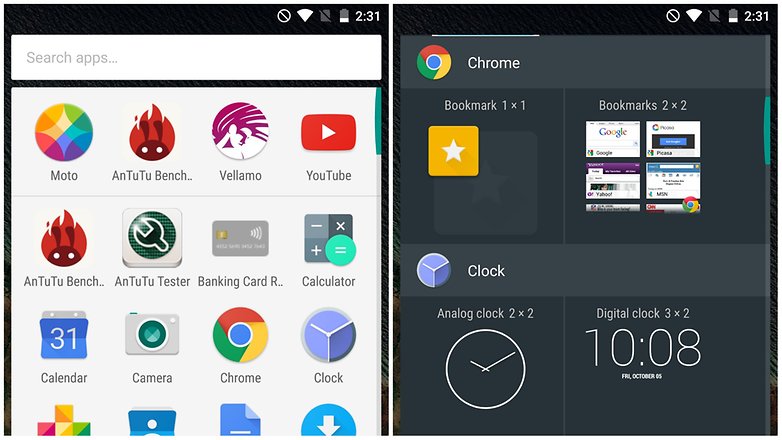
All
those widgets you have running on your home screen may be useful, but they also
take up their fair share of resources.
If
you have any widgets running that you don’t really need, consider disabling
them.
There's
no harm in having some active, but you will notice an element of slow-down if
you have too many running at the same time, so just be a little selective.
4. Disable unnecessary
animations and extras
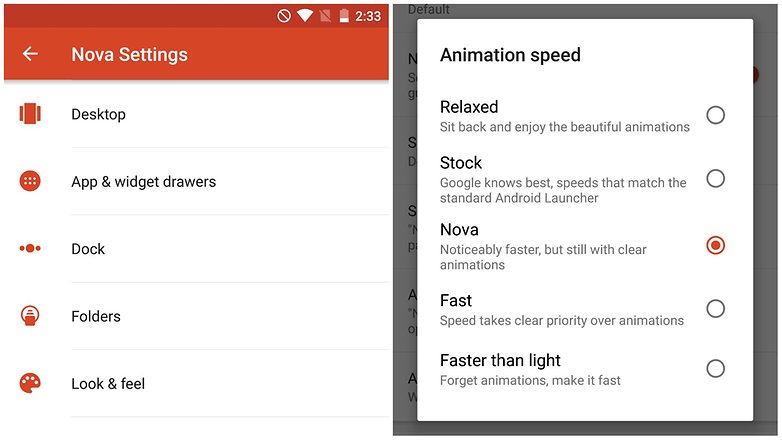
Depending
on the launcher you are using, you may find that there are various animations
and special effects in place. These may look great, but they can also slow
things down.
Check
in your launcher's settings to see if there is a way to disable any of these
unnecessary extras, and you could earn yourself a speed boost.
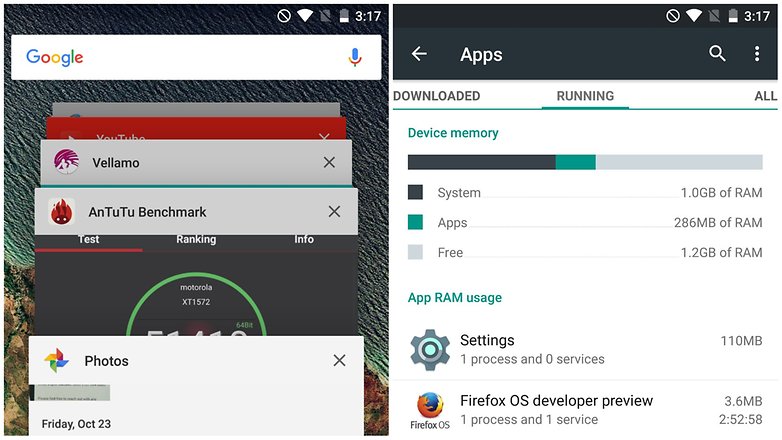
5. Close down apps and free up RAM
Multi-tasking
several apps makes it easy to switch between different tools, but there can
also be an impact on performance. You can quickly close down any apps you are
no longer using by calling up the running apps list – press and hold
the home key and then swipe away any apps you want to exit.
- While you are at this screen, tap the pie chart icon to the lower right of the screen and then move to the RAM section.
- Tap the Clear memory button and any
background processes that are running unnecessarily will be closed down.
6. Restart your device
A quick and simple fix for a slow device is to
simply restart it. This can clear out the cache, stop unnecessary tasks
from running, and get things running smoothly again.
- Just hold down the power button, select the Restart option, and then tap OK to confirm.
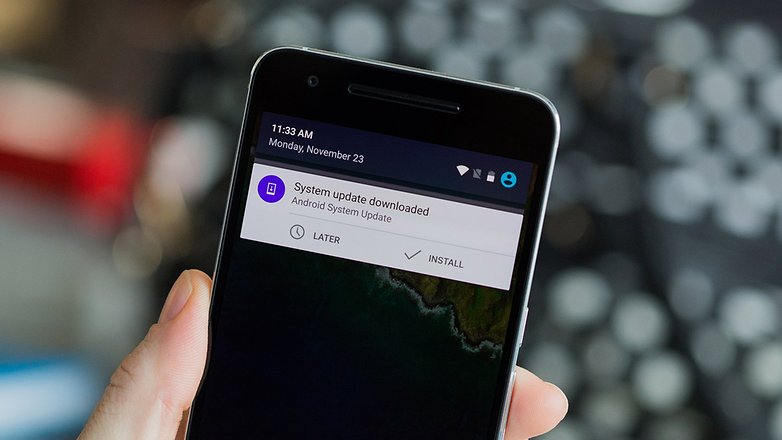
7. Make sure your software is up to date
Do
you keep swiping aside that notification to update your software? It only wants
the best for you. Software updates are not always about new features, most of
the time they also contain bug-fixes and performance enhancements than can
significantly speed up your device's operation.
Make sure your software is always on the latest version
available. You might not always be ready for a big download but don't put it
off forever, either.
8. Dig deeper
You
can also keep tabs on the apps that are using lots of battery by going to Settings > Battery.
You
can also monitor RAM usage in Settings
> Apps (or App Manager,
depending on your brand of phone)
There's
even more geeky goodies in Process
Stats in Developer
Options – if you don't have this setting enabled, go
to Settings > About Phone and
tap Build Number seven
times until a notification pops up.
9. Root your phone
For
advanced users, the unlocking the developer option is a mere taste of power,
the first step on the path to the real arcane arts-rooting the phone.
With
a rooted device, you have the freedom to install cleaner ROMs that can run more
smoothly than your current setup, and even overclock the processor, cracking
the whip on your hardware to make it run faster.
10. Factory Reset
Yes,
it's that faithful old last resort that can save the day when all else is lost
(and if you're doing this, all else will be
lost). A factory reset will restore the phone to the condition the manufacturer
shipped it in, which can do wonders to clean up obscure bits of leftover
software and buggy code that could be clogging up performance.
Trouble
is, of course, that you'll lose all your data. But if you've tried all our
other tips and still aren't happy with the speed of your phone, then it could
be time for drastic measures.


No comments:
Post a Comment